
Quick Log — Your On-Site Borehole Log

Updated: Sep 30
The Quick Log turns the data you've recorded at a location into a landscape, 1:50 borehole or trial pit log, right on your device. It's ideal for showing a client or engineer what's been found so far while you're still on site.
Opening the Quick Log
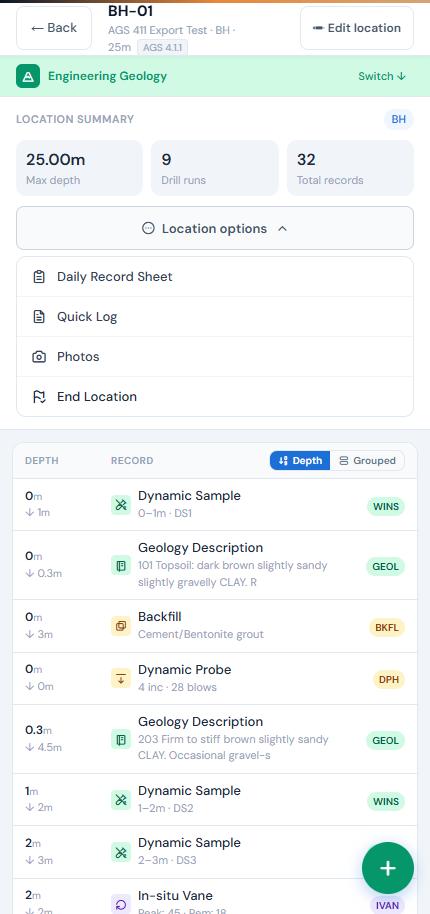
Open a location, tap Location options near the top of the screen, then tap Quick Log. Tap ← Back to return to your data.
What's on the Log
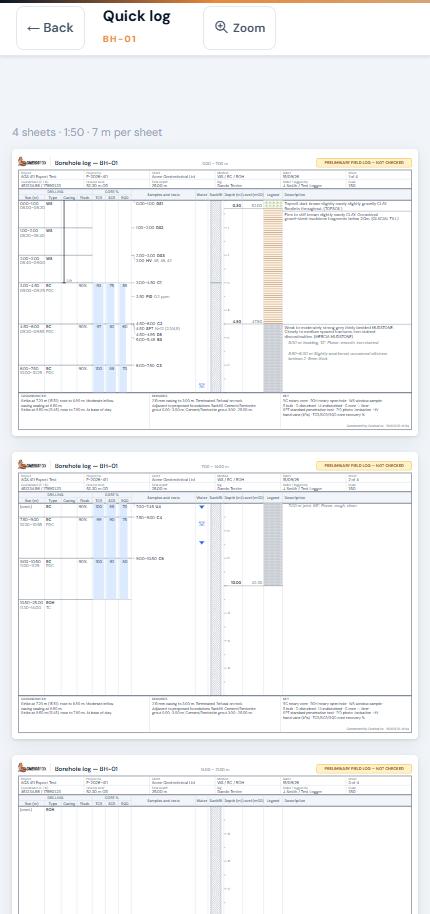
The log is laid out like a standard A4 landscape borehole log, with 7 m of depth per sheet. Deeper holes continue onto further sheets. The title reads Borehole log or Trial pit log depending on the location type.
Header
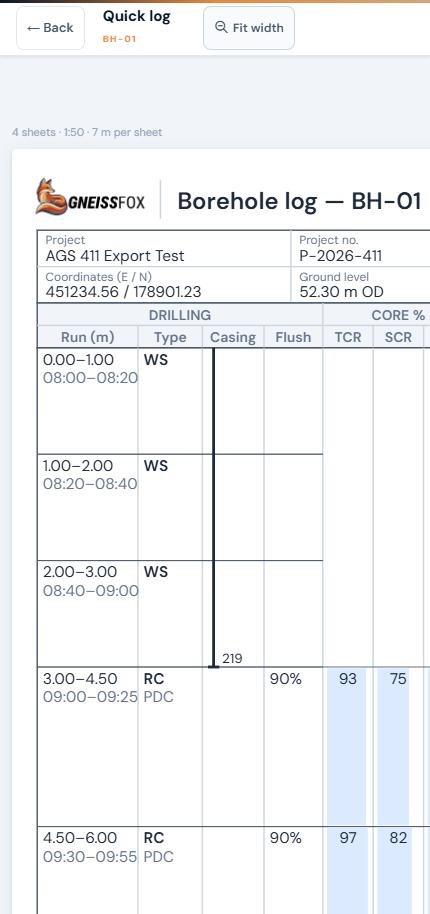
Each sheet's header shows the project name and number, client, method, dates, sheet number, coordinates (E / N), ground level, final depth, who drilled and logged the hole, and the scale.
Columns
Drilling (Run, Type, Casing, Flush): each drilling run with its depths, run type, casing and flush.
Core % (TCR, SCR, RQD): core recovery for each core run. These columns only appear when the location has core runs.
Samples and tests: samples and in-situ tests at the depths they were taken.
Water: water strikes.
Backfill: backfill and standpipe installation details.
Depth (m) and Level (mOD): stratum boundaries, with levels calculated from the ground level.
Legend: hatching for each stratum, based on its legend code.
Description: your geology descriptions.
Footer
The Groundwater, Remarks and Key sections at the bottom summarise the water strikes, any remarks, and the abbreviations used on the log.
Zooming
Use the zoom buttons in the header bar to zoom in and out, or tap Fit width to fit the sheet to your screen. Turning your device to landscape gives the best view.
A Preliminary Log
Every sheet carries the banner PRELIMINARY FIELD LOG — NOT CHECKED. The Quick Log shows your field data exactly as recorded. It hasn't been reviewed or checked, and isn't a substitute for the final log.
The Quick Log is view-only for now, so it can't be exported or shared.
Tips
The log is built from your latest data each time you open it, so reopen it after adding or editing records.
If a column is empty, check that the data has been recorded at that location. For example, core recovery only appears for core runs.
Set the location's ground level so the Level (mOD) column can be filled in.
You'll see Nothing to log yet until you've recorded some data at the location.


Comments