
Drilling Log — Your Client-Ready Drilling Record

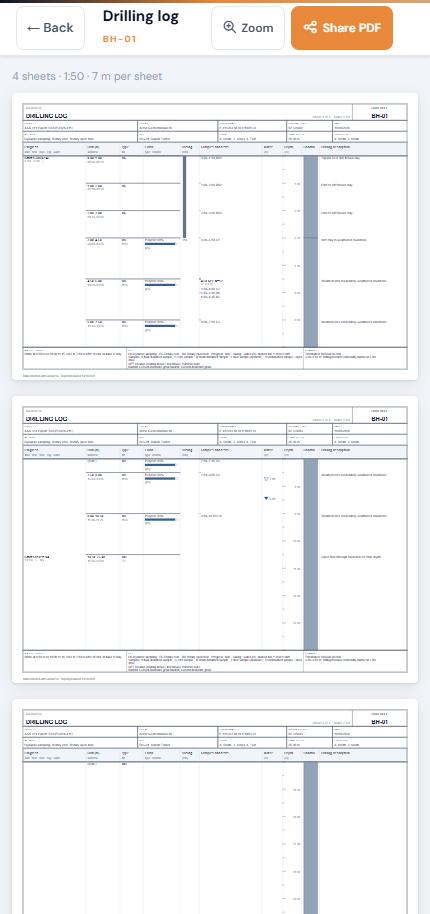
The Drilling Log is a client-ready log of the drilling at one location. It's a landscape, depth-scaled sheet at 1:50, with 7 m of depth per sheet like the Quick Log, but it shows only drilling information. GneissFox builds it automatically from your drill runs, cable percussion runs, casing, flush, samples, SPTs, water strikes and backfill, and you can share it as a PDF.
Core recovery (TCR, SCR and RQD) and geology descriptions are left off on purpose. Those belong on the engineer's log.
Opening the Drilling Log
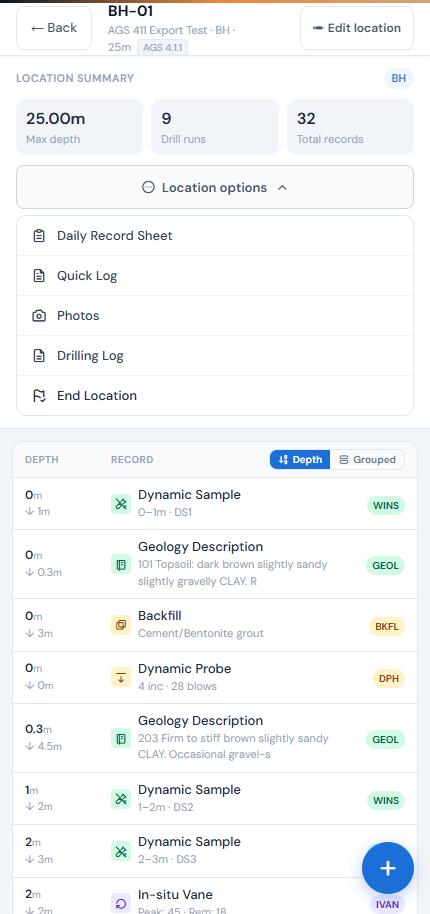
Open a location, tap Location options near the top of the screen, then tap Drilling Log. It appears once the location has at least one drill run or cable percussion run. Tap ← Back to return to your data.
The log opens with every sheet one below the other. The line at the top shows how many sheets there are.
What's on the Log
Header
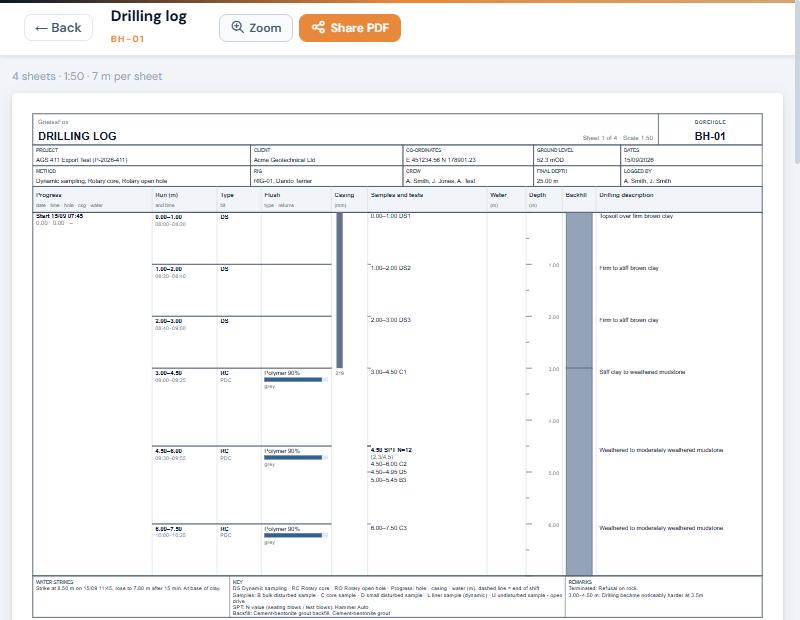
Project, client, coordinates, ground level, dates, method, rig, crew, final depth and who logged the hole. The crew is taken from the shifts worked at the location: the logger and the drilling support operatives.
Columns
Progress: the date, time, hole depth, casing depth and water level at the start and end of each shift.
Run (m): each run's depths and start and end times.
Type: the run type and the drill bit.
Flush: the flush type, with a bar showing the percentage of returns and the returns colour.
Casing: the casing strings and their diameter.
Samples and tests: samples labelled by type and reference (for example D1, B3, C2), and SPTs with their blow counts and N value.
Water: water strikes.
Depth and Backfill: the depth scale and the backfill placed in the hole.
Drilling description: the Comments you entered on each drill run or CP run.
Footer
Water strikes: each strike with its depth, time and where the water rose to.
Key: the abbreviations used, each sample type, the SPT notation, and each SPT hammer with its energy ratio.
Remarks: the reason for termination, installation details and depth remarks.
Zooming
Tap Zoom to read the sheet in detail, and Fit to see the whole width of the sheet again. Turning your device to landscape gives the best view.
Sharing the Drilling Log
Tap Share PDF to create the log as a PDF and open your phone's share sheet, so you can email it to the client, save it to Drive or keep a copy. Each sheet is an A4 landscape page, and the PDF matches what you see on screen.
The Drilling Log is also added automatically to your end-of-day export for every location drilled that day. To send logs any other time, open Send Data from the project menu, choose the locations and tick Drilling Logs.
Tips
Fill in the Comments on each run. They become the drilling description column, which is the part of the log clients read most.
Record casing, flush returns and water strikes as you go, so the log is complete without extra work at the end of the day.
Record the SPT hammer serial number and energy ratio. Both appear in the key.
The log is built from your latest data each time you open it, so reopen it after adding or editing records.
If you see Nothing drilled yet, add a drill run or CP run at the location first.


Comments