
Photos — Recording Site Photos

Updated: Oct 13
Photos let you keep a visual record of each location alongside your logging: core boxes, pit faces, samples, installations, reinstatement and anything on site worth noting. Each photo carries a short description, optional depths and a unique file name, so it can be matched to the daily record and the files you send at the end of the day.
Photos are not part of the AGS data file. Instead, the daily record notes each photo that was taken, by file name, and you can choose to send the photos themselves with your end-of-day export. They are also saved in your project backups.
Opening Photos
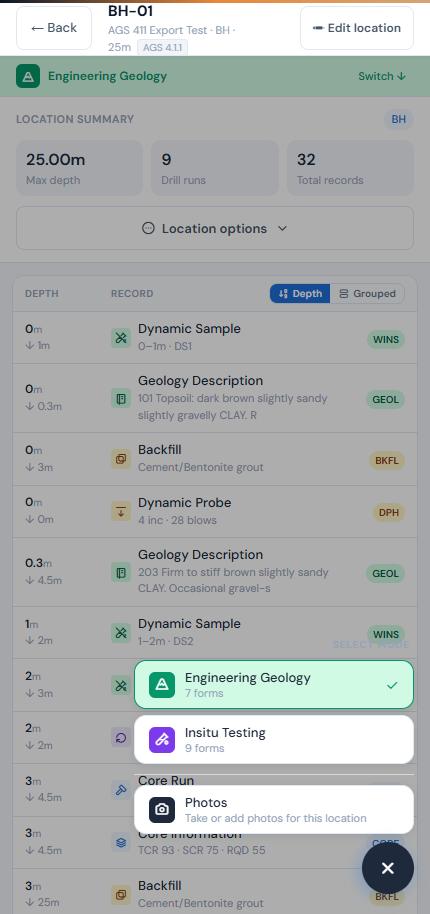
Open a location and tap the + button in the bottom-right corner. The main menu lists your modes (Rotary Drilling, Engineering Geology and so on). Photos sits on its own below the modes. It is the same for every mode, so you don't have to switch mode to take a photo.
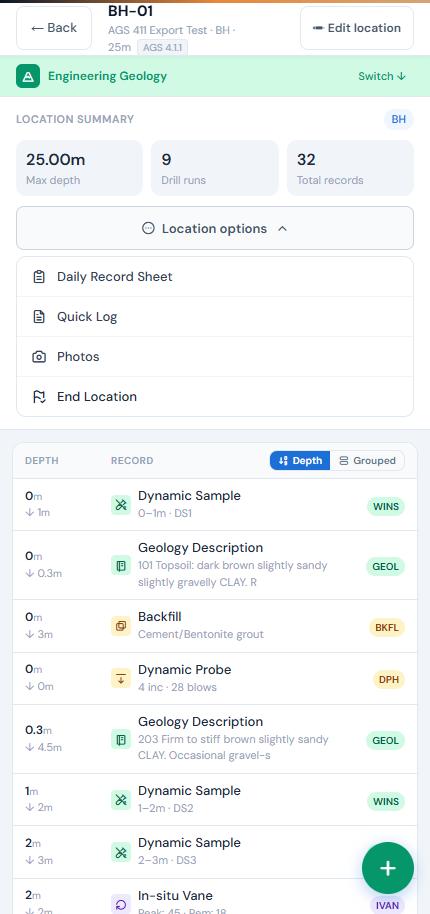
You can also reach Photos from Location options → Photos at the top of the location. This works on completed locations too, so you can look back at earlier photos.
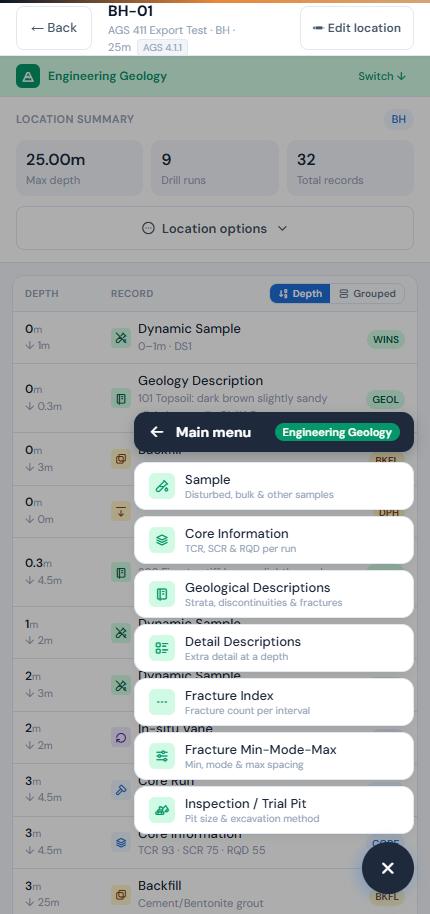
Tip: if you are in a mode's form list, tap the dark Main menu bar at the top of the list to go back up to the main menu.
Adding a Photo
At the top of the Photos screen there are two buttons:
Take photo: opens the phone's camera. Take the picture and confirm it.
From gallery: pick a photo already on your phone, for example one taken earlier with the camera app.
GneissFox automatically resizes the photo so it stays sharp on screen without filling up your phone. Your original photo in the gallery is not changed.
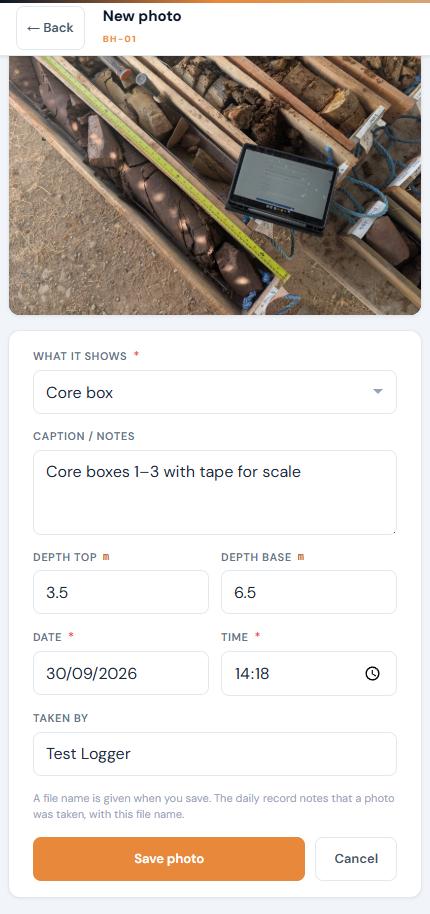
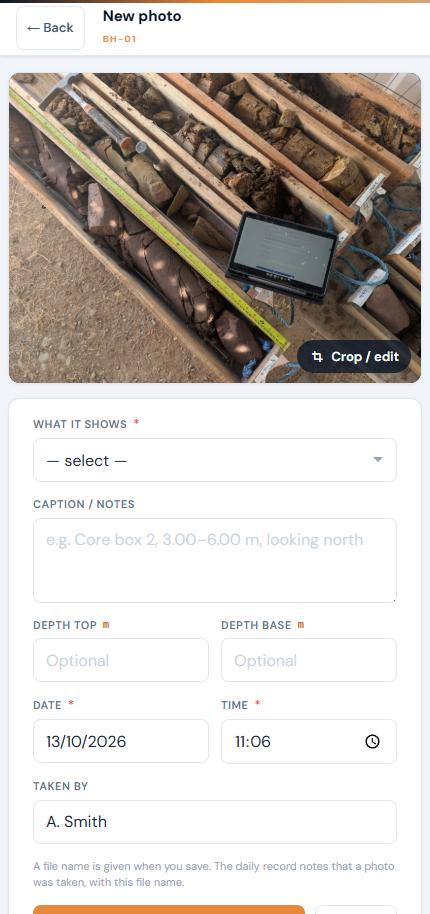
You will then see the photo with a short form to fill in.
Cropping, Rotating and Drawing
You can tidy a photo up without leaving GneissFox. Tap Crop / edit in the bottom-right corner of the photo to open the editor. This works on a new photo before you save it, and on a saved photo when you open it again.
Rotate left / Rotate right: turn the photo a quarter turn.
Crop: drag the corner handles to frame what matters, then tap Apply crop (or Cancel crop to leave it).
Draw: pick a colour (red, yellow, white or black) and draw on the photo with your finger, for example to circle a feature or add an arrow.
Undo: step back one change at a time.
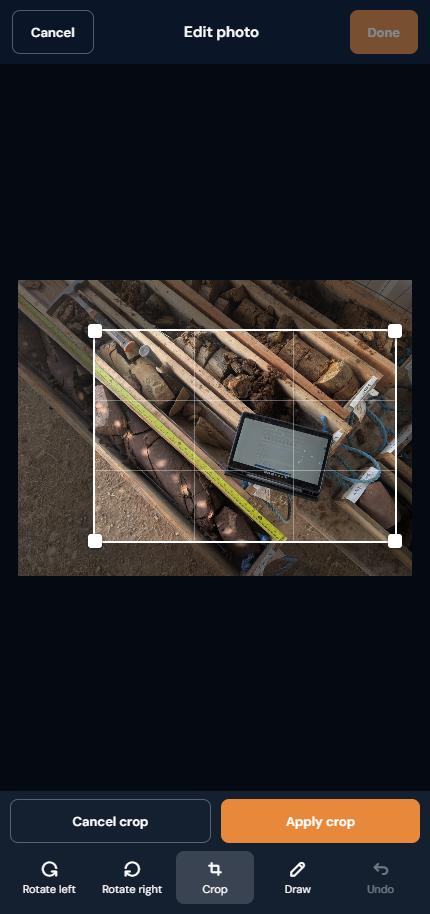
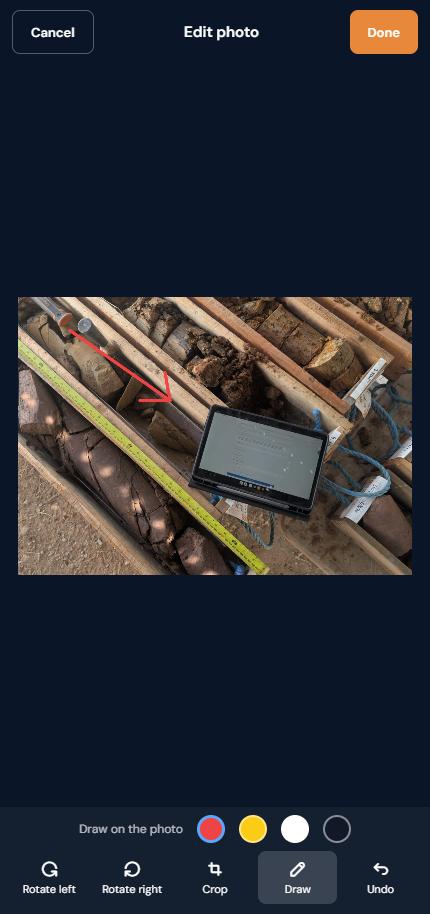
Tap Done to keep your changes, or Cancel to leave the photo as it was. The edited photo is saved like a fresh photo, at the same size and quality. Your original in the phone's gallery is not changed.
Photo Details
What it shows (required)
Choose the subject from the list: Location overview, Core box, Sample, Pit face / sidewall, Arisings / spoil, Installation, Reinstatement, Services / hazard, Plant / equipment or Other. This appears on the daily record, so anyone reading it knows what the photo is of.
Caption / notes
Anything that helps identify the photo later, such as the core box number, the direction you were facing, or what the arrow on the board is pointing at. For example: "Core box 2, 3.00–6.00 m, looking north".
Depth top and depth base (optional)
If the photo relates to a depth or a depth range (a core box, a pit face, a sample), enter it in metres. Leave the base blank for a single depth. The base can't be shallower than the top.
Date and time
Filled in automatically with the current date (dd/mm/yyyy) and time. Change them if you are adding a photo you took earlier.
Taken by
Filled in with the logger's name from today's shift. Change it if someone else took the photo.
Tap Save photo when you are done.
Photo File Names
When a photo is first saved it is given a file name made up of the project ID, the location, the date and a number:
P-2026-411_BH-01_20260930_01.jpg
The number counts up for each photo at that location on that day (_01, _02, _03 …). The name is shown at the bottom of the photo form once saved. It is the name the photo will have in your end-of-day export and in backups, and it is how the daily record refers to it. The name stays the same if you edit the photo's details later.
Viewing, Editing and Deleting
The Photos screen shows your photos as thumbnails, grouped by day with the newest first. Each thumbnail shows the time, the subject and the depth or caption.
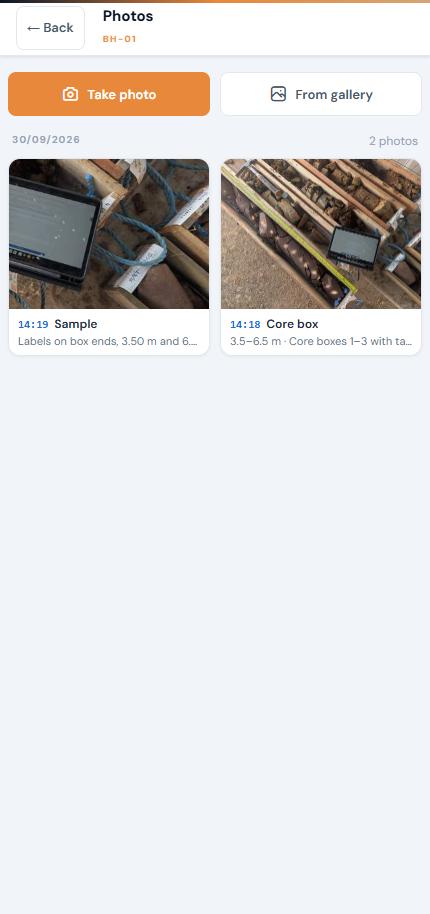
Tap a thumbnail to open the photo and edit its details.
Tap the photo itself to see it full screen. Tap again to close.
To remove a photo, open it, tap Delete photo and confirm. This can't be undone.
Photos on the Daily Record
Every photo is listed on the Daily Record Sheet for the day it was taken, under a Photos heading with the location ID, for example:
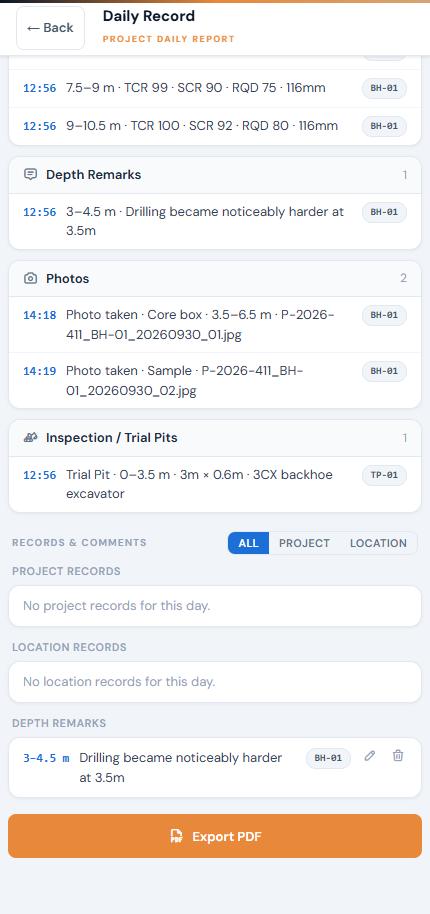
12:58 · Photo taken · Core box · 3–6 m · P-2026-411_BH-01_20260930_01.jpg
The same line appears in the daily record PDF and on the end-of-day review, so the client can match each entry to the photo file.
Sending Photos at the End of the Day
When you end your shift, after reviewing the daily record, GneissFox asks: "Do you want to also export today's photos?" (only if photos were taken that day).
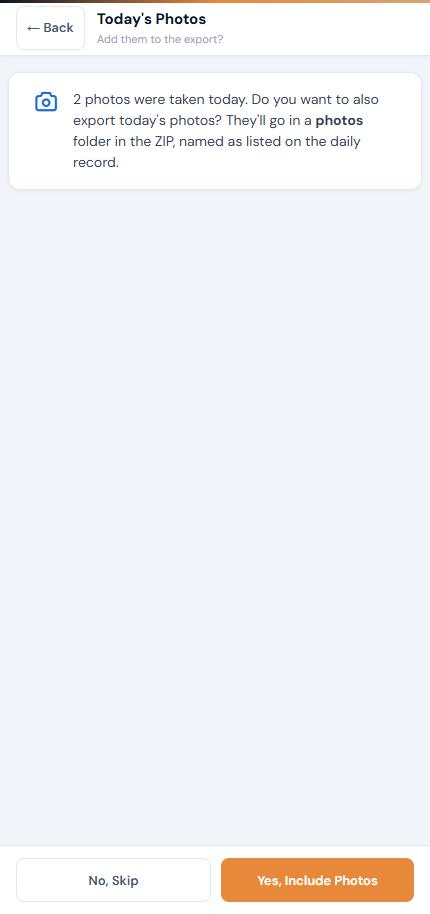
Yes, Include Photos: the photos are added to the export ZIP in a photos folder, alongside the AGS file and the daily record PDF.
No, Skip: the ZIP contains just the AGS file and the PDF. The photos stay safely in the app.
Sending Photos Any Time
You can also send photos without ending your shift, for example to catch up on earlier days or to send one location's photos to a client. From the project screen, tap the menu button in the bottom-right corner and choose Send Data.
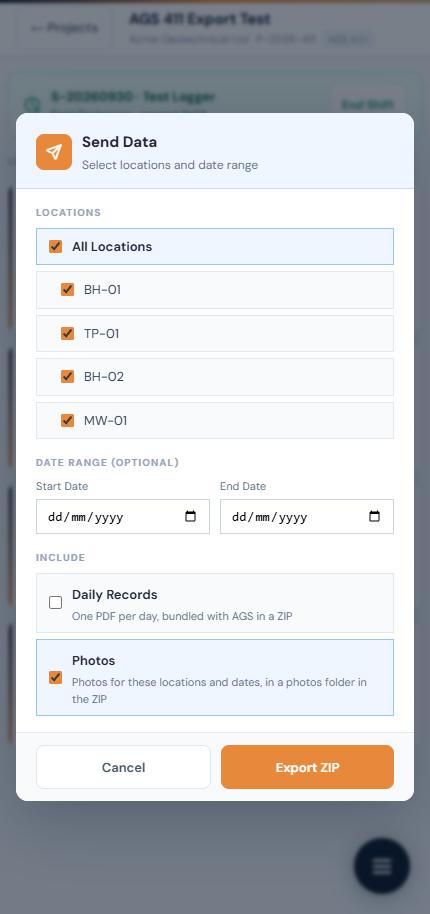
Tick the locations you want, and optionally set a start and end date.
Under Include, tick Photos. Tick Daily Records as well if you want the daily record PDFs.
Tap Export ZIP. The ZIP contains the AGS file, any daily record PDFs, and a photos folder with the photos from those locations and dates, named as they appear on the daily record.
The date range only applies when both dates are filled in. Leave them blank to send every photo for the chosen locations.
Photos in Backups
Project backups include all photos, so restoring a project brings them back with everything else.
Backup without a password: the backup ZIP contains a photos folder you can open directly on a computer.
Backup with a password: the photos are stored inside the encrypted backup so they are protected by the password too. They reappear when you restore.
Photos make backups larger (typically a few hundred KB per photo), so allow for this when saving backups to cloud storage.
Good Practice
Take a Location overview photo at the start of each day so the set-up and ground conditions are on record.
Include a whiteboard or label in core box and sample photos showing the location, box number and depths.
Use a scale (tape, ruler or ranging rod) in pit face and sample photos.
Record services, hazards and reinstatement with a photo and a clear caption. It helps when questions come up later.
Fill in the depths when a photo relates to a depth, so it lines up with your log.


Comments