
Backup & Restoring Projects

Updated: Sep 30
GneissFox stores all project data locally on your device. If your phone or tablet is lost, broken, or replaced, the data goes with it — unless you have a backup. The Backup & Restore feature lets you export your entire project as a compressed file and save it to Google Drive, OneDrive, SharePoint, or any other storage you have installed.
Backing Up a Project
You can access backups from the project settings or from the End Shift Wizard, which offers a backup as the final step of your day.
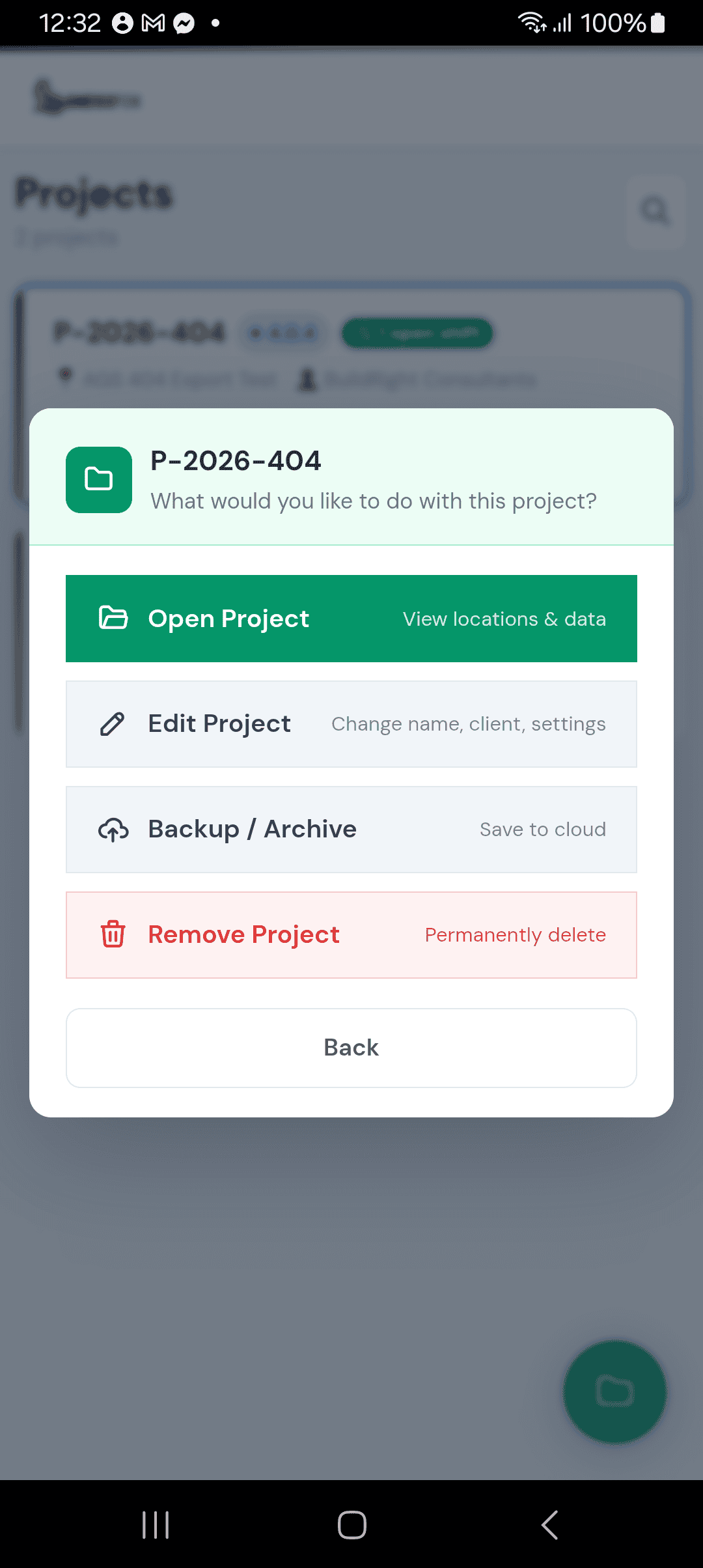
When you tap Back Up Project, the app compresses all project data — locations, samples, drill runs, geology descriptions, test results, and everything else — into a single .gn.zip file.
Optional password protection: Before exporting, you can set a password on the backup. The file will be encrypted with AES-256, and you will need the same password to restore it later. Passwords must be at least 8 characters.
Photos: backups include every photo taken in the project. In a backup without a password, the photos are saved as ordinary JPG files in a photos folder inside the .gn.zip, so you can open them on a computer. In a backup with a password, they are kept inside the encrypted file so the password protects them too. Either way, restoring the backup puts the photos back in the app. Photos make the backup larger, typically a few hundred KB each.
Once the file is ready, your device's Share Sheet opens. From here, you choose where to save the file — Google Drive, OneDrive, SharePoint, email, or local storage.
Backing Up All Projects at Once
If you have several projects on your device, or you're moving to a new phone, you can back them all up in one go.
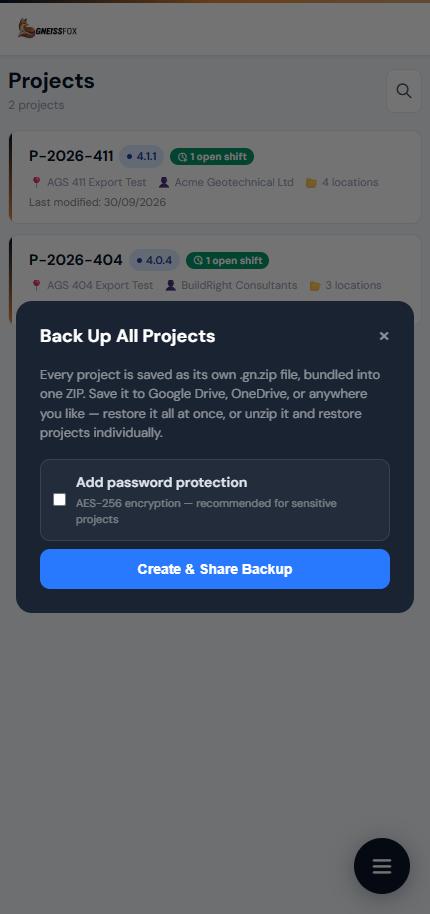
From the Projects screen, open the menu (with no project selected) and tap Back Up All Projects.
Optionally add a password (at least 8 characters). The same password protects every project in the backup.
Tap Create & Share Backup. The app backs up each project in turn and shows its progress.
When the Share Sheet opens, save the file to Google Drive, OneDrive, SharePoint, or wherever you keep your backups.
You'll get a single file named GneissFox_All_Projects_[date].zip. Inside it, each project is saved as its own .gn.zip file, so you can restore everything at once, or unzip it on a computer and restore just the project you need.
Importing & Restoring
GneissFox supports importing three file types:
.gn.zip — A full GneissFox project backup. Restores all data including locations, samples, tests, geology, and shift records.
.ags — An AGS 4.1.1 data file. Imports the project structure and data from an industry-standard AGS transfer file.
All Projects .zip — A backup of every project, created with Back Up All Projects. See below.
When you tap Restore / Import File, a file chooser opens showing all the storage providers installed on your device. Tap the hamburger menu (three lines) in the top-left corner to see every available source — Google Drive, OneDrive, SharePoint, local storage, Downloads, and more.
Select your file, and GneissFox will detect the type automatically. For password-protected backups, you will be prompted to enter the password before the restore begins.
Conflict handling: If the project already exists on your device, the app will ask whether you want to replace the existing project or import it as a new copy.
Restoring an All Projects backup: Select the GneissFox_All_Projects .zip file in the same way as a single backup. The app tells you how many projects it contains and how many are already on this device. For projects that already exist, you can choose to:
Skip them, and only add the projects that are missing
Replace them with the versions in the backup
Import as new copies, keeping both
If the backup is password-protected, you'll be asked for the password first. If the password is wrong, nothing is imported.
Importing from Google Drive
Google Drive is the default cloud storage on most Android devices. Your backup files saved to Drive are accessible from any device signed into the same Google account.
Saving a backup to Google Drive
Tap Back Up Project from the project settings or End Shift Wizard.
When the Share Sheet opens, select Google Drive.
Choose the folder you want to save to (or use the default).
Tap Save. The .gn.zip file uploads to your Drive.
Restoring from Google Drive
Tap Restore / Import File.
In the file chooser, tap the hamburger menu and select Drive.
Navigate to the folder containing your backup.
Tap the .gn.zip or .ags file to import it.
Tip: If you have multiple Google accounts on your device, make sure you select the correct account in the Drive sidebar before browsing for your file.
Importing from OneDrive
Microsoft OneDrive is widely used in organisations that run Microsoft 365. If your company stores site investigation data in OneDrive, you can import directly from it.
Prerequisites
Install the Microsoft OneDrive app from the Google Play Store.
Sign in with your Microsoft account (personal or organisational).
Ensure the files you need are synced or available online.
Saving a backup to OneDrive
Tap Back Up Project.
When the Share Sheet opens, select OneDrive.
Choose a folder and tap Upload or Save.
Restoring from OneDrive
Tap Restore / Import File.
In the file chooser, tap the hamburger menu and select OneDrive.
Browse to your file and tap it to import.
Note: OneDrive appears in the file chooser's sidebar once the app is installed and signed in. If you do not see it, check that the OneDrive app is up to date and that you are signed in.
Importing from SharePoint
SharePoint is commonly used by geotechnical consultancies to store project data in shared document libraries. Files stored in SharePoint can be accessed through the OneDrive app, which integrates both personal and organisational storage.
Prerequisites
Install the Microsoft OneDrive app from the Google Play Store.
Sign in with your organisational Microsoft 365 account.
The SharePoint sites and libraries you have access to will appear automatically within OneDrive under your organisation's name.
Restoring from SharePoint
Tap Restore / Import File.
In the file chooser, tap the hamburger menu.
Look for your organisation's name or the SharePoint library under the OneDrive section.
Navigate to the document library containing your .gn.zip or .ags file.
Tap the file to import it.
Tip: If your SharePoint libraries do not appear, open the OneDrive app separately and check that your organisational account is connected. SharePoint libraries sync automatically once the account is linked.
Other Storage Sources
The file chooser supports any app that registers as a file provider on Android. This includes:
Local storage / My Files — Files saved directly on your device or SD card.
Downloads — Files downloaded from email, browsers, or messaging apps.
Dropbox — If the Dropbox app is installed and signed in.
NAS apps — Apps like Synology Drive or QNAP that provide file access to network-attached storage.
Email attachments — Save an .ags or .gn.zip file from an email to your Downloads folder, then import from there.
Any app that can provide files will appear in the file chooser's sidebar menu. GneissFox does not restrict which sources you can use.
What Gets Backed Up
A .gn.zip backup contains everything in the project:
Project metadata (name, number, client, dates)
All locations and their settings
Every data record — drill runs, samples, geology, SPTs, water strikes, DPTs, DCPs, soakaways, variable head tests, backfill, installations, monitoring visits, and more
Photos, with their descriptions, depths and file names
Shift records and daily check data
AGS export configuration
Important: Backups do not include app settings, printer configuration, or login credentials. These are device-specific and stay on your device.
Best Practices
Back up daily. The End Shift Wizard prompts you to back up at the end of each day. Take advantage of this — it takes seconds and could save weeks of work.
Use cloud storage. Saving to Google Drive, OneDrive, or SharePoint means your backup survives even if your device is lost or damaged.
Use passwords for sensitive projects. If your project contains commercially sensitive or environmentally regulated data, enable password protection on your backups.
Keep multiple backups. Do not overwrite the same file every day. Let each backup create a new timestamped file so you can roll back if needed.
Test your restores. Periodically import a backup onto a second device to confirm the process works and your data is intact.
Changing devices? Use Back Up All Projects before you switch, so every project comes with you.


Comments