
Printer Setup

Updated: Oct 1
GneissFox can print sample labels directly from your Android device using a thermal label printer. This guide explains how to configure your printer.
You only need to set up your printer once — GneissFox remembers your settings for every future label print.
Choosing a Print Method
GneissFox offers two print paths. Tap the one that matches your setup:
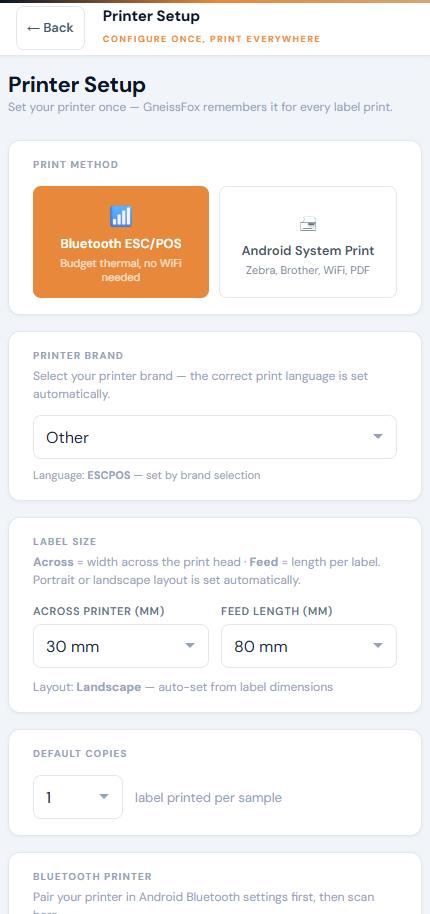
Bluetooth ESC/POS
Best for budget thermal label printers.
Connects directly via Bluetooth — no WiFi or network needed.
Ideal for fieldwork where there's no internet connection.
Android System Print
Best for professional WiFi printers.
Uses the manufacturer's free Android app from the Play Store.
Once the manufacturer app is installed, the printer appears in Android's print dialog automatically.
Also lets you save labels as PDF if no printer is available.
Setting Up Bluetooth ESC/POS
If you've chosen Bluetooth ESC/POS, follow these steps:
Step 1: Select Your Printer Brand
Choose your printer brand from the searchable dropdown — type to filter the list. This automatically sets the correct print language (the commands your printer understands). The available brands are:
Phomemo — uses ESC/POS
Toshiba TEC — uses TPCL
TSC — uses TSPL
Zebra ZT/ZD/ZP series — uses ZPL
Zebra Mobile QLn/ZQ series — uses CPCL
Munbyn — uses ESC/POS
Other — defaults to ESC/POS
Why does the brand matter? Different printer manufacturers use different command languages. Selecting the correct brand ensures GneissFox sends commands your printer understands. If you pick the wrong brand, the printer may produce blank labels or garbled output.
Step 2: Set Your Label Size
Configure two measurements:
Item | Description |
|---|---|
Across printer (mm) | The width of the label as it sits in the printer, measured across the print head. |
Feed length (mm) | The length of each label in the feed direction. |
The print direction is set automatically based on your label dimensions. If the across measurement is larger than the feed length, content prints across the label; otherwise, it prints down.
Available sizes range from 30 mm to 100 mm in 1 mm increments.
Step 3: Set Default Copies
Choose how many labels to print each time (1 to 5). You can always change this on a per-print basis later.
Step 4: Pair and Select Your Printer
Important: You must pair your printer in your Android Bluetooth settings before scanning in GneissFox.
Open Android Settings and go to Bluetooth.
Turn on your printer and put it in pairing mode (check your printer manual).
Pair the printer in Android Settings.
Return to GneissFox and tap Scan for paired printers.
Your printer will appear in the list — tap it to select.
Once selected, you'll see a green confirmation showing the printer name and Bluetooth address.
Step 5: Test Print
Tap Send test print to send a simple test label to your printer. This confirms the connection is working and your settings are correct.
If the test print doesn't work, a Troubleshooting card appears with a Copy debug info button. Tap it and paste the details into an email to GneissFox support. The log isn't shown on screen because it includes your printer's Bluetooth address.
Setting Up Android System Print
If you've chosen Android System Print:
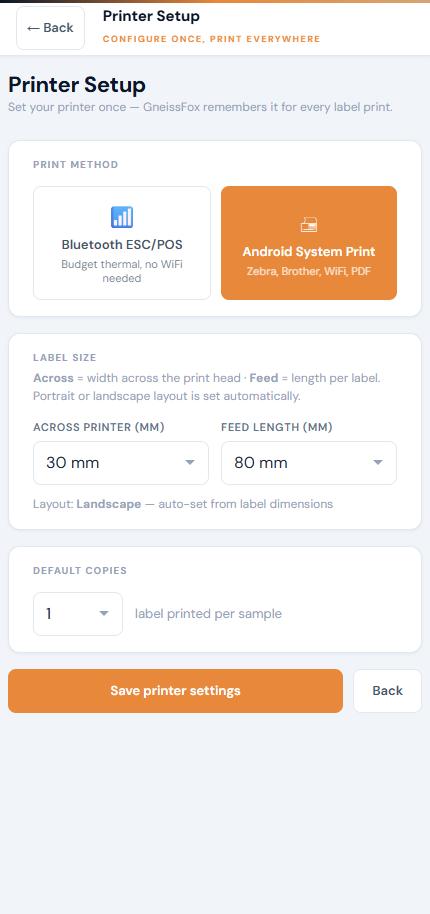
Install your printer manufacturer's app from the Play Store (e.g. Zebra Print Service, Brother iPrint&Label, DYMO Connect).
Once installed, your printer will automatically appear in Android's print dialogue when GneissFox sends a label.
No additional configuration is needed in GneissFox — just set your label size and default copies.
Which Printers Work?
We have tested and confirmed that the Phomemo M110 (Bluetooth ESC/POS) and the Toshiba TEC B-FP3D (Bluetooth TPCL) work with GneissFox. These are the only printers we have physically verified at this time.
The printers listed below are ones we have aimed to work with based on their advertised protocol, but they have not been individually tested. Results may vary, and we cannot guarantee they will work.
Always run a test print before relying on any printer in the field.
Brand/Model | Type | Status |
Phomemo M110 | Bluetooth ESC/POS | Tested & Confirmed |
Toshiba TEC B-FP3D | Bluetooth TPCL | Tested & Confirmed |
Phomemo (other) | Bluetooth ESC/POS | Not Tested |
Toshiba TEC (other) | Bluetooth TPCL | Not Tested |
TSC | Bluetooth TSPL | Not Tested |
Zebra (ZPL) | Bluetooth ZPL | Not Tested |
Zebra (CPCL) | Bluetooth CPCL | Not Tested |
Munbyn | Bluetooth ESC/POS | Not Tested |
Brother | Android System Print | Not Tested |
Epson | Android System Print | Not Tested |
HP | Android System Print | Not Tested |
Known Not to Work
Niimbot series — Uses a fully proprietary Bluetooth protocol. There is no ESC/POS mode and no Android print service available for these printers.
Tips
If you change printers, just come back to Printer Setup and scan for the new device.
For Phomemo printers, GneissFox automatically adjusts for the 1 mm non-printable margin on each side of the print head.
Toshiba TEC printers are recognised automatically from their model name (e.g. B-FP3D). On Toshiba printers, GneissFox currently supports gapped (die-cut) label rolls.
If your Bluetooth printer isn't appearing in the scan, make sure it's paired in Android Settings first — GneissFox scans for paired devices, not unpaired ones.
The debug log from a failed test print is invaluable for troubleshooting — always copy it before trying something else.
If your printer isn't listed above, it may still work — run a test print and let us know the results so we can update this guide.


Comments