
Monitoring Visits — Gas, Groundwater & Flow

Updated: Oct 13
The Monitoring form records post-construction visits to monitoring wells and gas standpipes. It follows a multi-level workflow — you create a visit, then navigate into separate sections for gas readings, gas flow, groundwater, and temperatures. Each visit ties back to an installation (MONG_REF) you previously recorded in the Backfill & Installations form.
Opening the Monitoring Form
Tap Monitoring from the location's data menu. You will see a list of all visits recorded at this location, with a summary showing how many gas readings, flow readings, and groundwater records each visit contains.
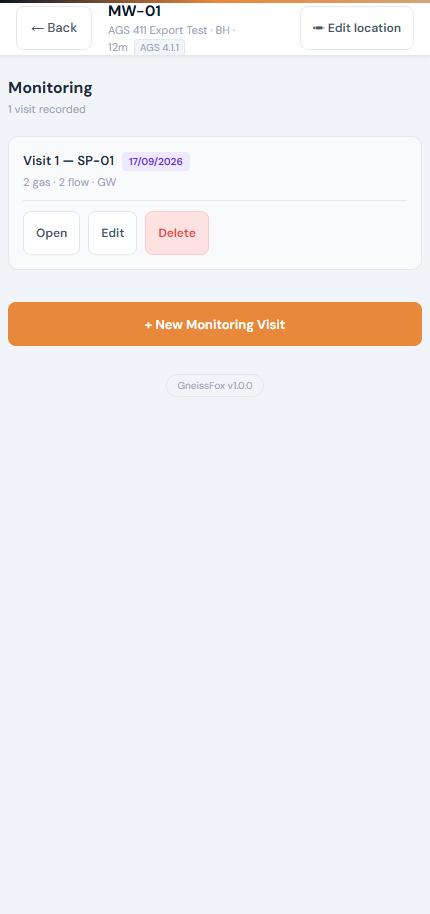
Tap any visit card to expand it and reveal Open, Edit, and Delete options. Tap + New Monitoring Visit to start a fresh visit.
Visit Setup
Before recording any readings, you must set up the visit details.
Field | What to Enter | Why It Matters |
|---|---|---|
Installation (MONG_REF) | Select from the searchable dropdown of installations recorded at this location — type to filter | Links the visit to the correct standpipe or well — each installation has a known depth and pipe configuration |
Pipe Reference | Optional pipe reference within the installation | Useful when an installation has multiple pipe strings |
Visit No | Auto-increments from the last visit | Sequential numbering for the monitoring programme |
Date | Defaults to today | Date of the monitoring visit |
Logger | Name of the person carrying out the visit | Audit trail — who took the readings |
Weather | Select from: Sunny, Overcast, Rain, Heavy Rain, Drizzle, Wind, Snow, Fog | Weather affects gas readings — BS 8576 requires this to be recorded |
Equipment Details (BS 8576)
Tap the Equipment details toggle to expand optional fields for instrument name, serial number, and calibration details. BS 8576 requires that gas monitoring equipment is identified and its calibration status recorded.
Once you tap Start Visit, you are taken to the Visit Dashboard.
The Visit Dashboard
The dashboard is your central hub for the visit. It shows four cards you can tap into:
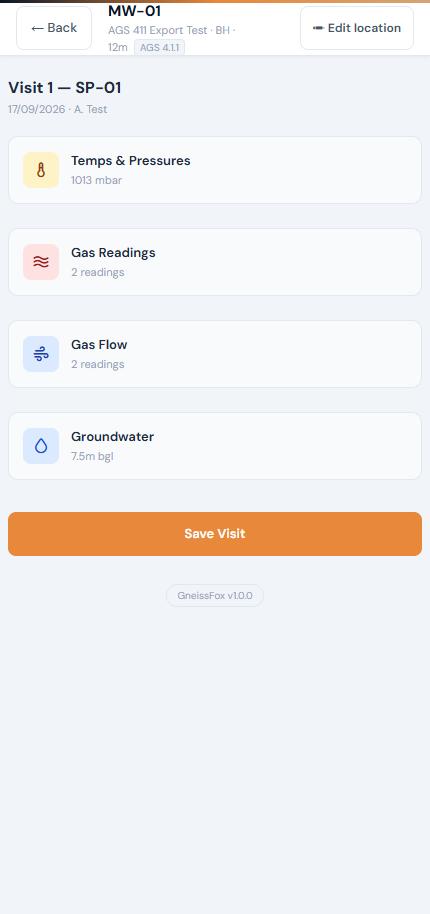
Item | Description |
|---|---|
Temps & Pressures | Barometric pressure, pressure trend, current and 3-day lookback temperatures |
Gas Readings | Timed CH4, CO2, O2, CO, H2S, balance, LEL, and optional PID readings |
Gas Flow | Timed flow rate and differential pressure readings |
Groundwater | Water levels, purging, sampling, optional water quality and free product |
Each card shows a live summary — for example, the gas card shows how many readings have been taken, and the groundwater card shows the recorded water depth. Tap Save Visit when finished to save all data and return to the visit list.
Temps & Pressures
Field | What to Enter | Why It Matters |
|---|---|---|
Barometric Pressure (mbar) | Current reading from your gas monitor or a barometer | Low or falling pressure can increase gas emissions from the ground — BS 8576 recommends at least one visit during low/falling pressure |
Pressure Trend | Rising, Steady, or Falling | Context for interpreting gas concentrations |
Current Temperature (°C) | Ambient air temperature | Temperature affects gas behaviour and instrument accuracy |
3-Day Temperature Lookback | Temperatures for the previous 3 days (Today −1, −2, −3) | Sudden temperature changes can affect ground gas migration patterns |
Tap Done to return to the dashboard.
Gas Readings
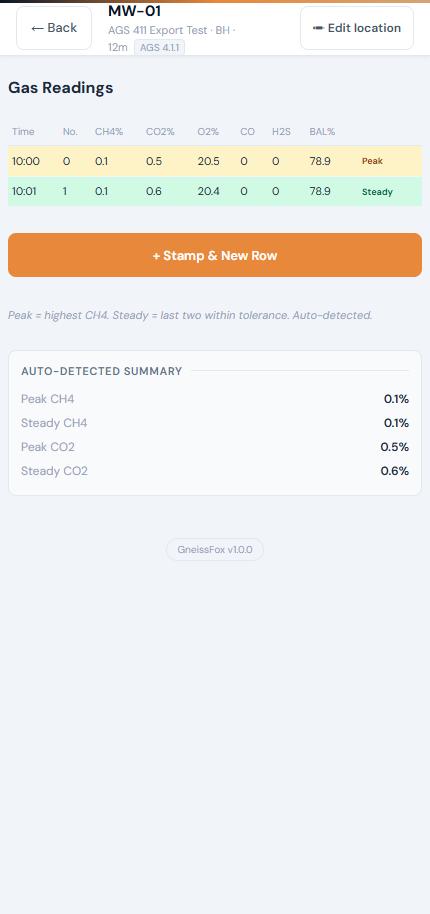
Gas readings are recorded as a timed series — typically one reading per minute. The app builds a table showing all readings, with automatic peak and steady-state detection.
Taking a Reading
Tap + Stamp & New Row to create a new reading. The time is auto-stamped. Enter your gas monitor values:
Field | Unit | Notes |
|---|---|---|
Methane (CH4) | % by volume | Primary hazard gas in ground gas monitoring |
Carbon Dioxide (CO2) | % by volume | Indicator of organic decomposition |
Oxygen (O2) | % by volume | Depleted oxygen suggests gas displacement |
Carbon Monoxide (CO) | Ppm | Toxic gas indicator |
Hydrogen Sulphide (H2S) | Ppm | Toxic gas — distinctive rotten egg smell |
LEL | % LEL | Lower Explosive Limit percentage |
PID | Ppm | Optional — toggle PID Carried Out to Yes to enable this field |
The app automatically calculates the balance (100% minus CH4, CO2, and O2). This should approximate nitrogen content.
Auto-Detection
After two or more readings, the app automatically identifies:
Item | Description |
|---|---|
Peak | The reading with the highest methane concentration |
Steady | The last pair of consecutive readings within 10% tolerance of each other |
The summary card at the bottom shows peak and steady CH4 and CO2 values, plus whether equilibrium has been reached. Equilibrium means CH4, CO2, and O2 have all stabilised within 0.1% between consecutive readings after at least 3 minutes of monitoring.
You can tap any row to select it, then tap Edit Row to correct a reading.
Gas Flow
Gas flow readings follow the same timed-series pattern as gas readings.
Field | Unit | Notes |
|---|---|---|
Gas Flow Rate | Litres per hour (l/hr) | Measured at the wellhead using a flow meter |
Differential Pressure | Millibars (mbar) | Pressure difference between the standpipe and atmosphere |
The app auto-detects peak and steady flow values, just like gas readings. It also calculates the Gas Screening Value (GSV) — steady flow rate multiplied by peak CH4 concentration — which is a key metric for ground gas risk assessment.
Groundwater
The groundwater section records water levels and optional sampling and quality data.
Field | What to Enter | Why It Matters |
|---|---|---|
Initial Water Level (m bgl) | Depth to water from ground level | The primary groundwater measurement — m bgl means metres below ground level |
Water Level Elevation (m AOD) | Auto-calculated if ground level is set in the location details | Converts depth-to-water into an elevation above ordnance datum for comparison across locations |
Depth of Hole (m) | Total depth of the monitoring well | Checks whether the well has silted up since installation |
Recharged To (m) | Depth recharged to, if applicable | Records if water was added during the visit |
Purged To (m) | Depth purged to before sampling | Purging removes stagnant water to get a representative sample |
Volume Purged (L) | Litres of water removed | Standard practice is 3 well volumes before sampling |
Water Sampled? | Yes or No | If Yes, a sample depth field appears, pre-filled from the water level |
Water Quality (Optional)
Toggle Water Quality to expand fields for pH, electrical conductivity (EC), dissolved oxygen (DO), turbidity (NTU), redox potential (mV), and water temperature. These are recorded using field meters during or after purging.
Free Product (Optional)
Toggle Free Product to record DNAPL (dense non-aqueous phase liquid) and LNAPL (light non-aqueous phase liquid) thicknesses in metres. Free product indicates the presence of separate-phase contamination floating on or sinking below the water table.
Tap Done to return to the dashboard.
Saving Your Visit
From the dashboard, tap Save Visit to store all the data. When you navigate back from the dashboard, the visit auto-saves. You can return to any visit later from the visit list to add more readings or edit existing data.
Each visit stores gas readings, flow readings, groundwater, temperatures, and water quality together as a single record. This means all the data from one monitoring round at one standpipe is kept together and exports cleanly into the AGS MOND group.
The Monitoring Record
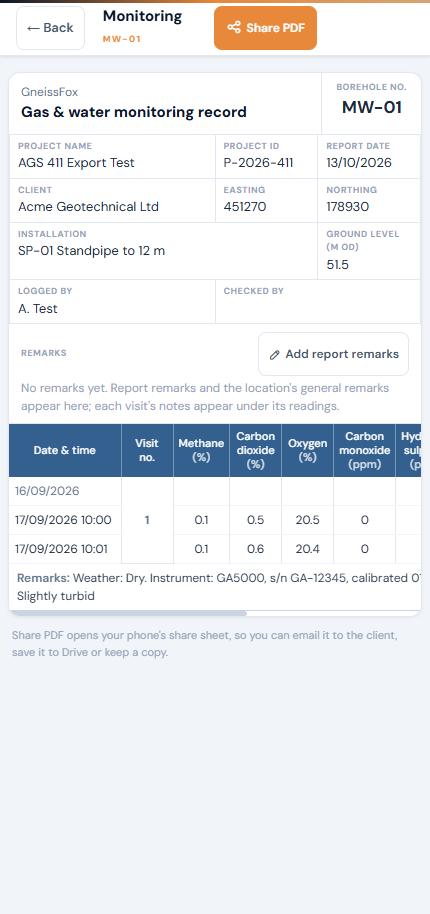
The Monitoring Record is a gas and water monitoring report for one location, built from every visit recorded there. Use it to send results to the client or to keep a copy for your records.
Opening the Record
Open the location, tap Location options, then tap Monitoring Record. It appears once the location has an installation or a monitoring visit. You can also tap View Monitoring Record on the visit list, under + New Monitoring Visit; tap ← Back to return to your visits.
What's on the Record
Header: project, client, coordinates, installation, ground level and who logged the visits.
Readings table: one row per timed reading, with methane, carbon dioxide, oxygen, carbon monoxide, hydrogen sulphide and gas flow. Gas and flow readings taken at the same minute share a row, and each visit's temperature, barometric pressure and water depth are shown alongside its readings.
Look-back temperatures: each visit opens with the Today −3, −2 and −1 temperatures, each on the date it was taken.
Visit remarks: each visit closes with its weather, instrument and visit notes.
Report Remarks
Tap Add report remarks to type notes for the report, such as the equipment used, the installation type and the monitoring method. A blank box offers the usual headings with the instrument and installation already filled in. The remarks are saved with the location, so they're kept in your backups and appear every time the record is produced, above the location's general remarks.
Sharing the Record
Tap Share PDF to create a PDF of the record and open your phone's share sheet, so you can email it to the client, save it to Drive or keep a copy.
The record is also added automatically to your end-of-day export for every location you monitored that day. To send it any other time, open Send Data from the project menu, choose the locations and tick Monitoring Records.


Comments