
Getting Started — Login & 2FA Setup

Updated: Oct 13
Welcome to GneissFox! This guide walks you through signing into the app for the first time and setting up two-factor authentication (2FA) to keep your account secure.
Before You Begin
To use GneissFox, you need an active account registered at gneissfox.co.uk. If you don't have one yet, visit the GneissFox website and create your account before proceeding.
Signing In
When you open the GneissFox app, you'll be presented with the sign-in screen. Here's what you need to do:
Enter the email address associated with your gneissfox.co.uk account.
Enter your password. You can tap the eye icon to toggle password visibility if you need to check what you've typed.
Tap the Sign In button.
Why do I need to sign in? GneissFox uses your account to verify your license and ensure only authorised users can access the app. Your license is tied to a single device at a time — if you sign in on a new device, your previous device will be signed out automatically.
Forgotten Your Password?
If you've forgotten your password, tap the Forgot password? link at the bottom of the sign-in screen. This will take you to the GneissFox website where you can reset it.
Session Expired or Signed Out?
You may occasionally see one of these messages:
Session expired — Your login session has timed out for security reasons. Simply sign in again.
Signed out on another device — Your license was used to sign in elsewhere, so this device was automatically signed out. Sign in again to reclaim this device.
Setting Up Two-Factor Authentication (2FA)
After your first successful sign-in, you'll be prompted to set up two-factor authentication. This adds an extra layer of security to your account by requiring a one-time code in addition to your password.
What You'll Need
An authenticator app installed on your phone — we recommend Google Authenticator or Microsoft Authenticator.
A safe place to store your backup codes (e.g. a password manager or printed copy kept securely).
Step 1: Start Setup
When the 2FA setup screen appears, tap Set Up Now to begin. The app will generate a unique secret key for your account.
Step 2: Add to Your Authenticator
You have three options to add GneissFox to your authenticator app:
Tap Open Authenticator App — this will open your authenticator directly and add the account automatically.
Scan the QR code — if your authenticator is on a different device, scan the QR code displayed on screen.
Enter the setup key — if you can't scan the QR code (for example, your authenticator is on another device), the setup key is shown below it in groups of four characters. Tap Copy setup key and paste it into your authenticator app, using its option to enter a setup key.
Once you've added it, tap I've added it, continue.
Step 3: Save Your Backup Codes
The app will display a set of one-time backup codes. These are your safety net — if you ever lose access to your authenticator app, you can use one of these codes to sign in.
Important: Write these codes down or save them in a secure location. Each code can only be used once. You must tick the I've saved these codes checkbox before you can continue.
Step 4: Verify Setup
Open your authenticator app and find the GneissFox entry. Enter the 6-digit code it shows into the verification screen. The code changes every 30 seconds, so enter the current one.
Once verified, 2FA is active on your account. You'll need to enter a code from your authenticator each time you sign in.
Signing In with 2FA
On subsequent sign-ins, after entering your email and password, you'll see the two-factor authentication screen. Open your authenticator app and enter the current 6-digit code.
The code auto-submits when you enter the 6th digit, or you can tap Verify manually.
Can't Access Your Authenticator?
If you don't have your authenticator available, you have two options:
Use a backup code — enter one of the one-time backup codes you saved during setup.
Email me a code — tap this option and a verification code will be sent to your registered email address. Check your inbox (and spam folder) for the code.
Protecting the App with a PIN
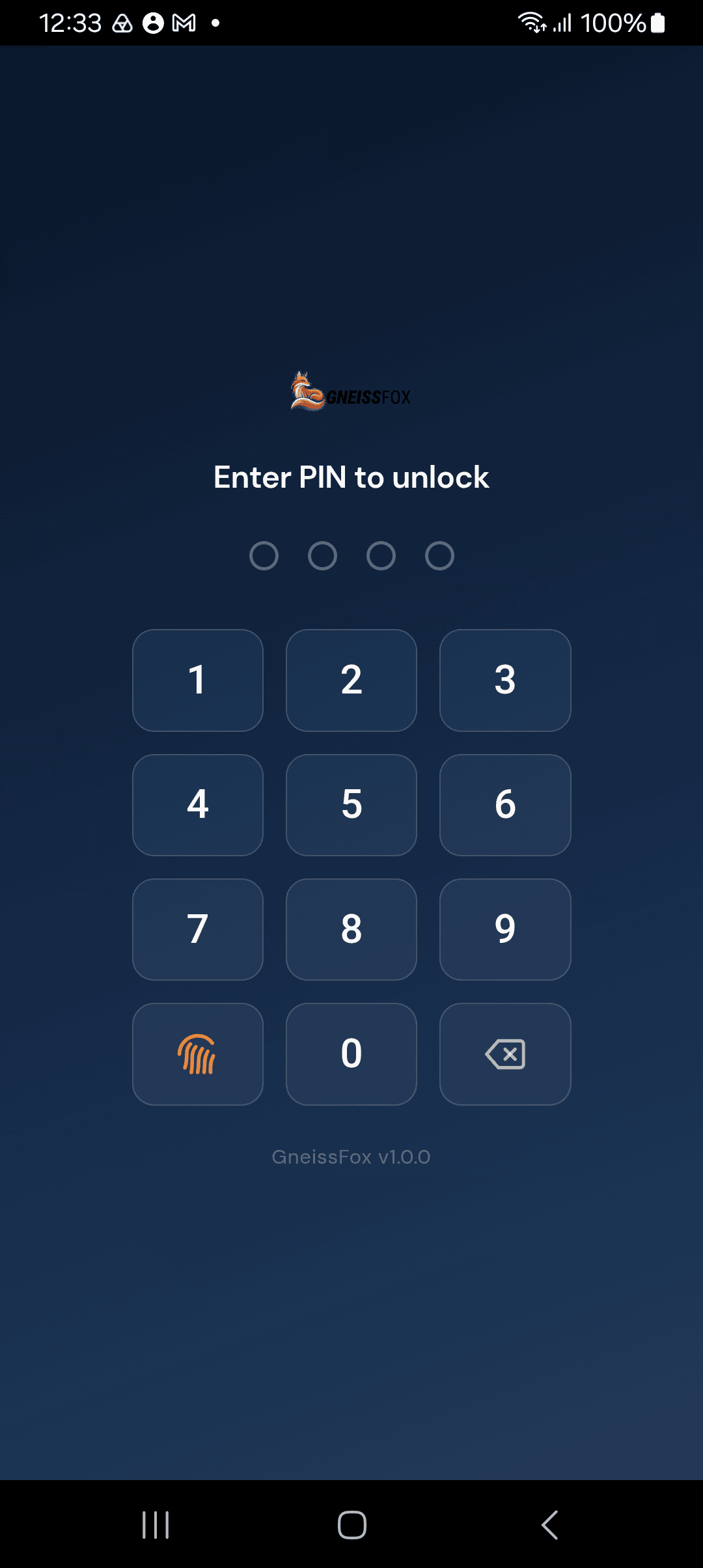
After you've signed in, GneissFox asks you to protect the app with a PIN. This keeps your project data safe if your device is lost or left unlocked.
Setting Up Your PIN
Tap Set Up PIN, enter a 4-digit PIN, then enter it again to confirm.
If your device supports it, you'll be offered Fingerprint Unlock or Face Unlock. Tap Enable to use it, or PIN only to skip. Your PIN always works as a fallback.
You can tap Skip for now and set a PIN later: open the main menu on the Projects screen, tap Account & Device, and tap Set up PIN. The App lock row there also shows whether your lock is on. We strongly recommend using a PIN, especially if you hold client data.
Unlocking the App
GneissFox locks whenever you leave it, for example when you switch to another app or turn off the screen. When you come back, unlock it with your fingerprint, face or PIN.
Too many attempts: after 5 incorrect PINs, the app makes you wait 30 seconds before trying again.
Forgotten Your PIN?
On the lock screen, tap Forgot PIN?, then Sign out & reset PIN. You'll be signed out and will need to sign in again with your GneissFox password and authenticator code, then set a new PIN. Your projects stay on the device. You'll need an internet connection to sign back in.
Tips
Keep your authenticator app backed up — if you change phones, make sure to transfer your authenticator accounts first.
Store backup codes separately from your device — don't just screenshot them on the same phone.
If you're having trouble, you can always use the email fallback option to receive a code.
Your GneissFox license is single-device. If a colleague needs access, they'll need their own license.
Set up an app PIN. If your device is lost, it stops anyone opening your project data.


Comments