
Ending Your Day — Review, Sign & Export

Updated: Oct 13
The End Shift Wizard walks you through a structured close-out process at the end of each day. It covers end-of-day checks, location completion, a full review of the day's work, signature capture, and export — all in one guided flow.
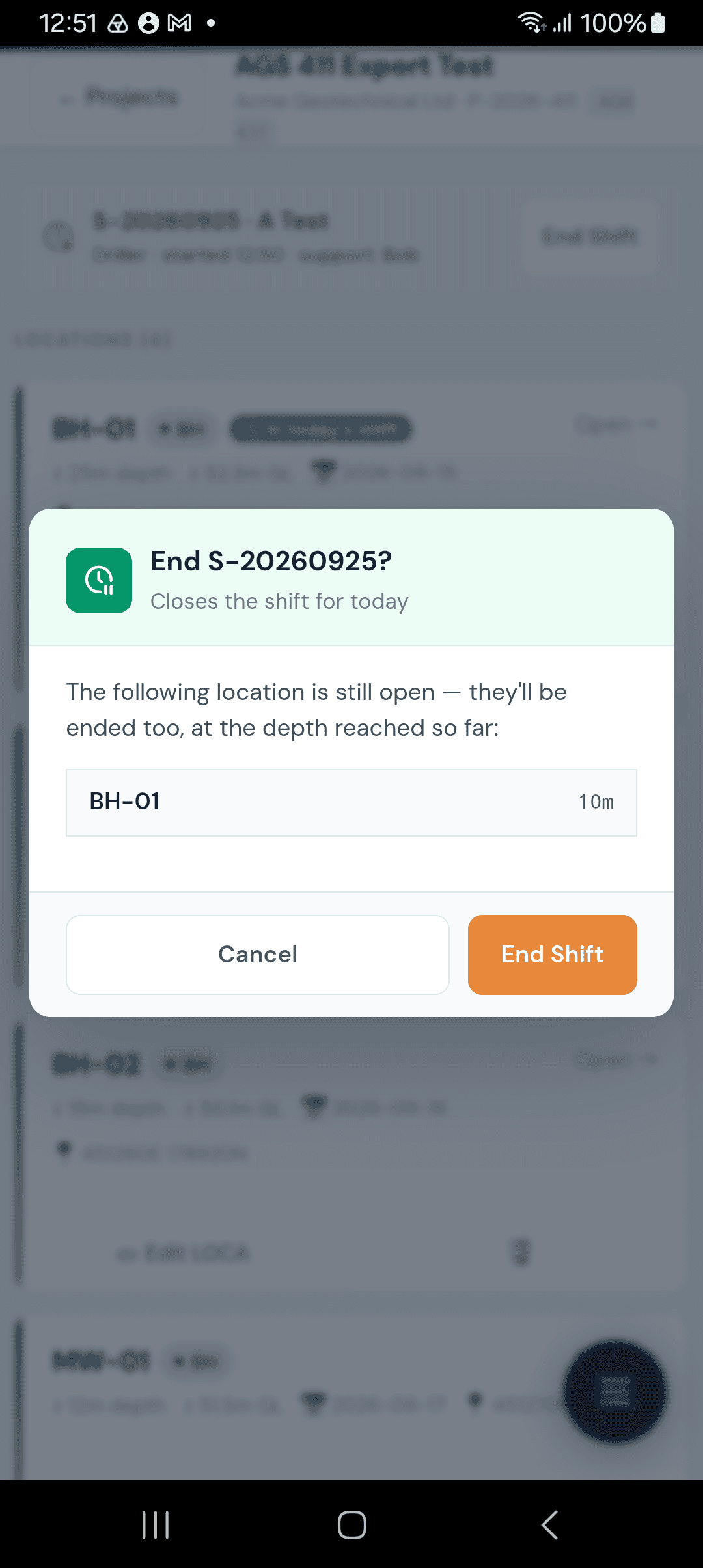
Starting the Wizard
When you are ready to finish for the day, tap the End Shift option from the main project screen. The wizard opens as a full-screen overlay and takes you through each step in order.
Finishing One Location Mid-Shift
If you've finished at one location but are carrying on at others, you don't need to end your whole shift. Open the location, tap Location options near the top of the screen, then tap End Location.
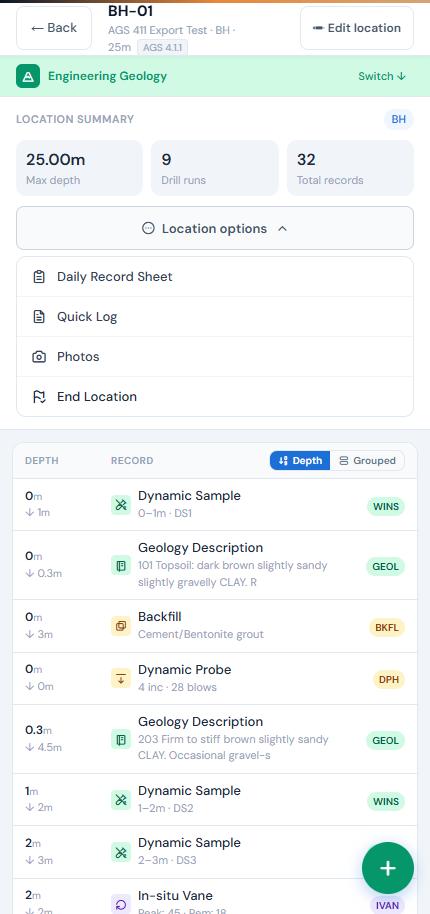
This closes the location for today's shift, recording the current time and the deepest depth reached, and takes you back to the locations list. Your shift stays open for your other locations.
Note: End Location doesn't replace the End Shift Wizard. The location's end-of-day record is still written when you end your shift. To mark a borehole or pit as finished altogether, use Step 2 — Completed Locations.
Step 1 — End-of-Day Records (Automatic)
There's nothing to fill in at this step. For every location you started today with a Location Check, GneissFox writes the end-of-day record for you as soon as the wizard opens.
Each record copies the rig, method, hole diameter, casing depth, water status, weather and logger from that morning's Location Check. It uses the deepest depth reached at the location today and the time you ended the shift, and it is marked "Recorded automatically at end of shift".
The wizard then closes the shift, with the end time set to the current time, and goes straight to Step 2. If the weather or water conditions changed during the day, add a Site record or Location record on the Daily Record so the change is noted.
Step 2 — Completed Locations
The wizard shows all locations that do not yet have an end date. If any boreholes or pits have been completed today (reached target depth, terminated, or otherwise finished), tick the checkbox next to each one.
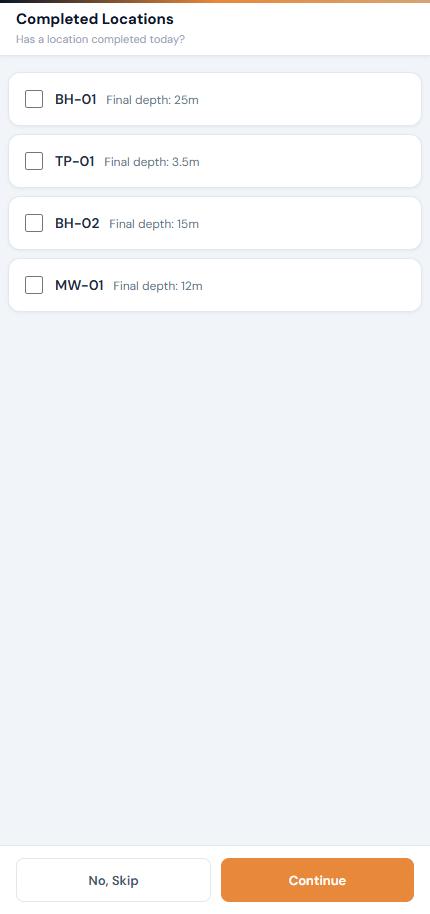
Tapping Mark Complete sets today's date as the end date for those locations. If no locations were completed, tap No, Skip to move on. This step is about the location's overall completion — not the day's work.
Step 3 — Review the Daily Record
The app loads all data recorded today across every location and presents it as a read-only Daily Record. This is the same content described in the previous article — work completed grouped by category, project records, location records, and client instructions.
Take a moment to scroll through and check that everything is present and correct. If something is missing or wrong, you can go back and fix the data before proceeding.
At the bottom, tap Proceed to Sign when you are satisfied.
Today's Photos
If any photos were taken today, the wizard asks: "Do you want to also export today's photos?" before you sign.
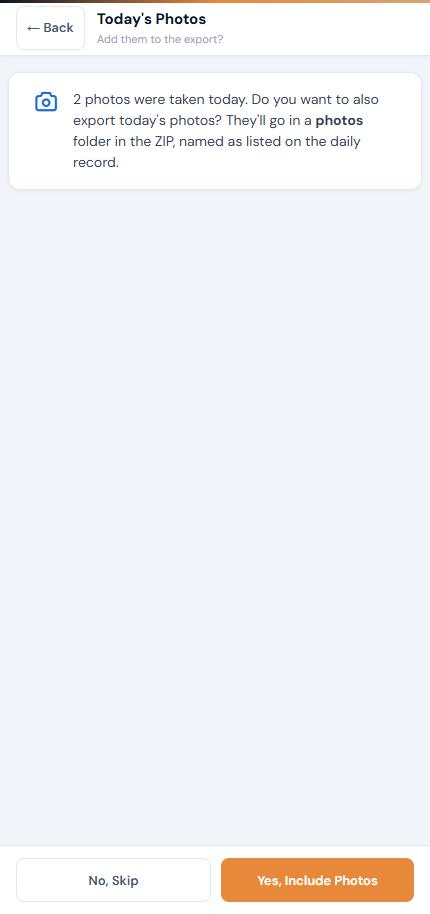
Yes, Include Photos: the photos are added to the export ZIP in a photos folder. Each one has the same file name shown on the daily record.
No, Skip: the ZIP contains only the AGS file and the daily record PDF. The photos stay in the app and are still included in your project backup.
If no photos were taken today, this step is skipped.
Step 4 — Sign & Export
The signing screen provides two signature pads:
Item | Description |
|---|---|
Engineer / Geologist | The field geologist or engineer responsible for the data |
Driller / Operative | The driller or machine operator |
Sign directly on the screen using your finger or a stylus. Each pad has a Clear button if you need to redo a signature. At least one signature is required before you can export.
Tap Sign & Export to generate the export. The app creates:
A Daily Record PDF — the signed summary of the day's work, including both signatures
An AGS data file — the full project data in AGS 4.1.1 format
Drilling Logs and Monitoring Records — a Drilling Log PDF for each location drilled today and a Monitoring Record PDF for each location monitored today. Each one covers all the work at that location to date, ready to send to the client.
Today's photos, in a photos folder, if you chose to include them
These are bundled into a single ZIP file and shared via your device's share sheet. You can save it to Google Drive, OneDrive, email it to the office, or AirDrop it to a colleague.
Step 5 — Back Up the Project
After exporting, the wizard asks if you would like to create a full project backup. This generates a .gn.zip file containing the entire project database — every location, every record, all settings.
Tap Yes, Back Up to create and share the backup file, or No, Skip to finish without backing up. We strongly recommend backing up at the end of every day — if your device is lost, damaged, or replaced, the backup file is your recovery path.
The backup process is covered in more detail in the next article.
Tips
Run the End Shift Wizard before leaving site — the signatures should be captured while both the geologist and driller are present
The export ZIP filename includes the project ID and date, making it easy to organise files by day
If the export fails, the wizard shows the error message. Common causes are missing project data or insufficient storage — check the message and retry
You can re-run the wizard if needed, but the shift will already be marked as closed. The review and export steps will still work
The Daily Record PDF is a formal document — treat the signatures as you would a paper sign-off sheet


Comments